
How-To & Tutorials
Signed on Paper, Sent as a Photo: How to Capture a Signed Page So It Still Holds Up
☰ Table of Contents
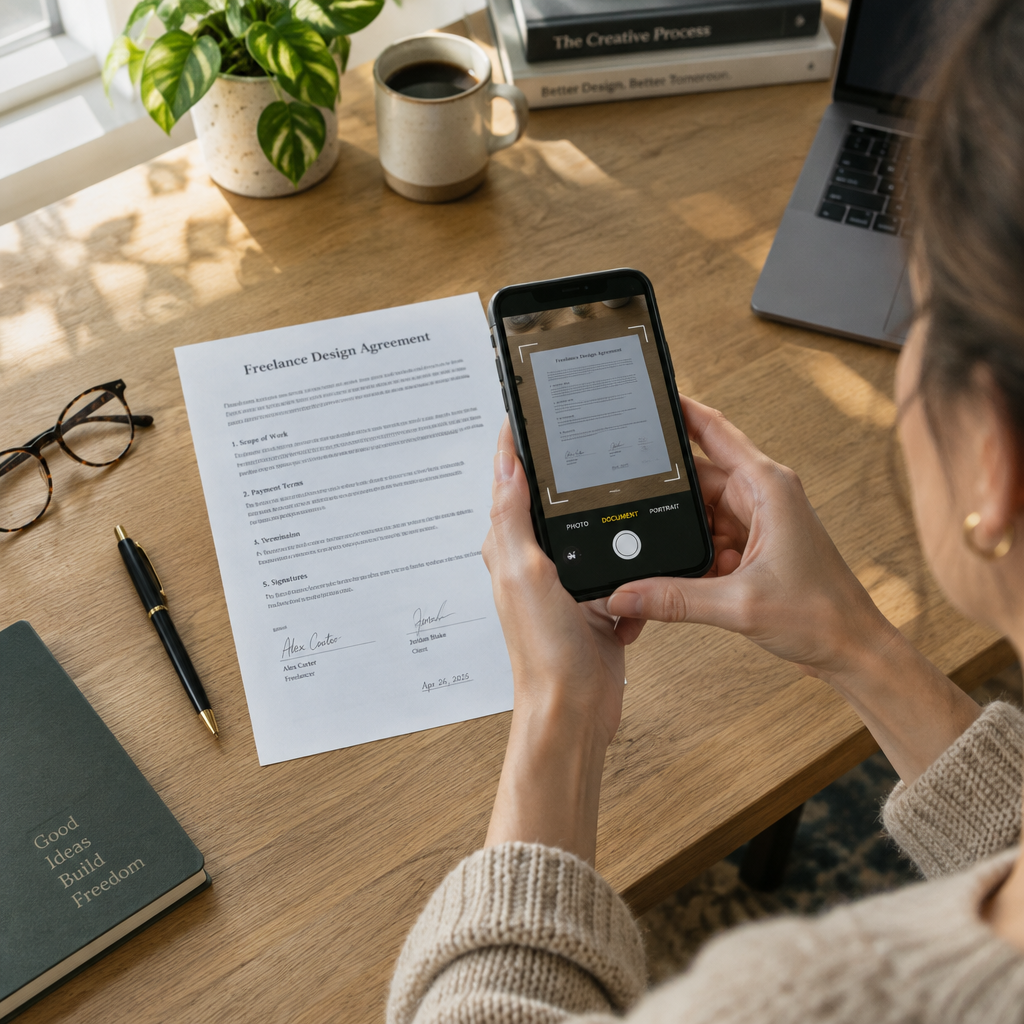
Most signed pages are never lost. They are saved badly: a slanted phone photo, glare across the date, the bottom margin cropped off, sent as a chat image that got re-compressed twice. The file exists, so it feels handled. Then a payment question comes up and you open it to find you cannot clearly read what was signed.
This guide is the capture routine we settled on after too many of those. It covers how to shoot a signed page, how to straighten and crop without destroying it, the three file settings worth caring about, and the short paper trail that makes the result useful months later.
Why the Photo You Send Is Not the Record You Think It Is
Someone signs a page. You take a phone photo, drop it in an email, and the project moves on. Six months later there is a question about what was actually agreed, and the thing you have in your sent folder is a 1.8 MB image of a sheet of paper sitting on a slightly crooked desk, shot at an angle, with the top third in window glare. It is not nothing. But it is a lot less than people assume it is.
This is not a piece about esoteric compliance. It is about a habit that takes ninety extra seconds and decides whether the document you saved is usable or merely present. If you freelance, run a small studio, or handle invoices for a two-person company, you produce signed pages constantly: statements of work, change orders, NDA countersignatures, delivery receipts, equipment handovers. Almost every one of them gets captured badly.
We will go through what a phone capture actually does to a page, a repeatable capture routine, the file settings that matter, and the small paper trail that turns a loose image into something you can point at later with confidence. The same discipline shows up in other parts of client work, like keeping an approvable project timeline or turning a call into client-ready follow-up actions: the point is never the file, it is being able to answer a question two months later.
What a Phone Capture Adds and What It Removes
The mistake is treating a capture method as neutral. Every method changes the page in a specific way, and the changes are not small. Here is how the four common options actually differ for a signed single page.
| Method | What you gain | What you lose or risk |
|---|---|---|
| Casual phone photo (one shot, saved straight from camera roll) |
Speed. Nothing to install. Works when you are standing in a client’s kitchen. | Perspective skew, glare, cropped edges, phone camera timestamp, background clutter, and a JPEG that may be downsized again by whatever app sends it. |
| Phone scanner app (built-in Notes scan or a document-scan mode) |
Edge detection, automatic straighten, multi-page in one file, usually a proper PDF. | Defaults are tuned for “looks nice”, not “reads clearly”: heavy contrast, aggressive compression, and sometimes an automatic colour cast on a blue-ink signature. |
| Flatbed scan (office scanner or print shop) |
Square, even light, high resolution, consistent colour, no perspective error. | Time and access. Impractical for a page signed on site unless you scan later. |
| Digital signature platform (when the other side accepts it) |
Built-in audit trail: who signed, when, from what address, plus a hash. | Some clients, landlords and public bodies still insist on wet ink on paper, so you cannot rely on it alone. |
Read that table again with one question in mind: which row describes what is currently in your sent folder? For most freelancers the answer is the first row, and it is the weakest one.
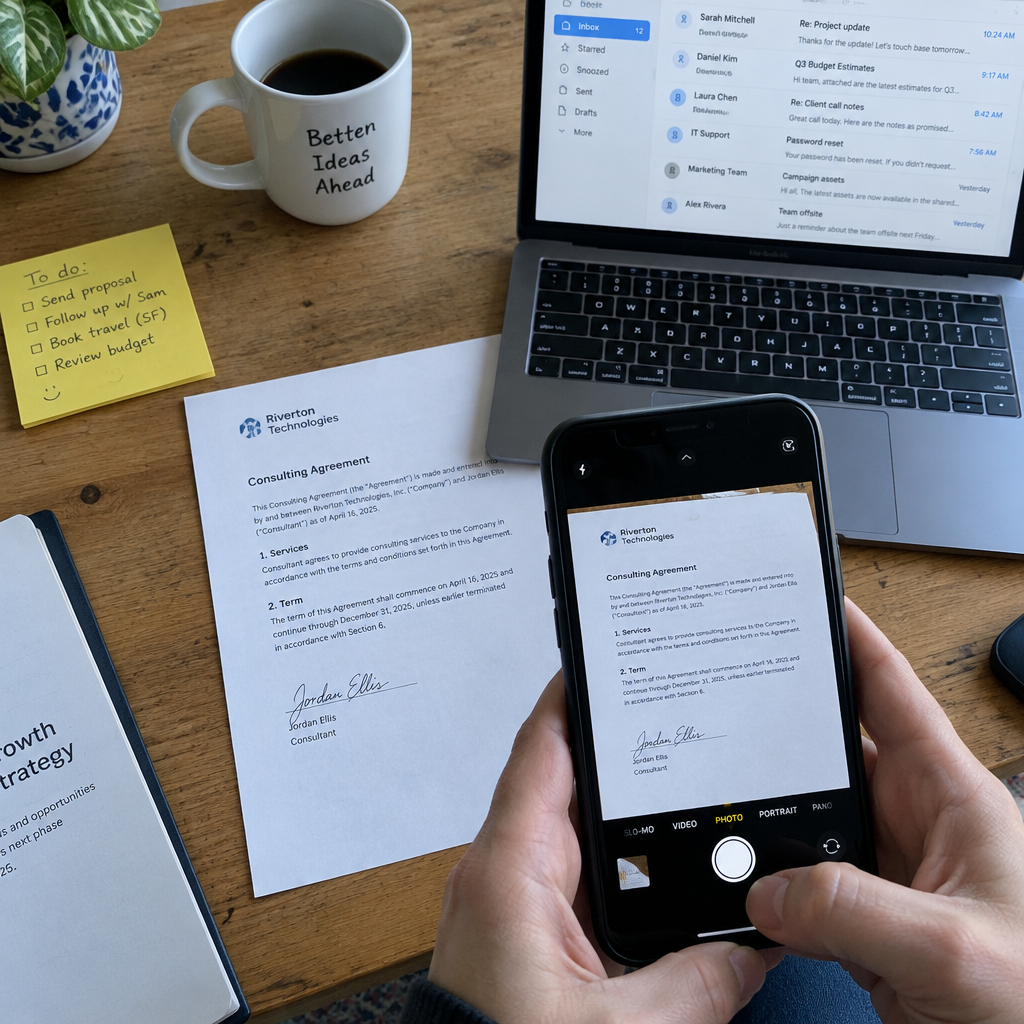
Notice what the second image above shows: a careless photo of a signature page is really a photo of a desk. Once that frame is saved and forwarded, you no longer control what is visible in it. Sticky notes, an open inbox, a second contract’s corner. You are not only archiving your document, you are archiving your workspace.
The Six-Shot Capture Routine
You do not need a scanner. You need one clean pass over the page and about ninety seconds. This is the routine we use, in order, and it is boring on purpose.
| Step | What to do | Why it matters later |
|---|---|---|
| 1 | Clear the surface completely. Only the signed page on the desk. | Removes the accidental background archive problem entirely. |
| 2 | Light from the side, not above. Turn off the ceiling light directly overhead if you can. | Direct overhead light is what creates the hot white glare band across a signature. |
| 3 | Shoot straight down, phone parallel to the page, all four page corners visible with a margin. | Perspective skew is what makes text look warped and hard to re-read years later. |
| 4 | Tap to focus on the signature line, not on the middle of the page. | The signature and date are the parts that actually get questioned. |
| 5 | Take a second frame of the full page including headers, page numbers and any footer. | Context: which document, which page, which version. |
| 6 | Take a third frame of any handwritten amendment or margin note on its own. | Handwriting is the first thing to become illegible at low resolution. |
Straighten, Crop, Then Check the Edges
A scanner app will offer to crop and straighten for you. Accept the straighten, and then verify the crop yourself, because automatic cropping is where documents quietly lose their content.
- Watch the margins. Auto-crop loves to slice the last line of a paragraph or the bottom edge of a stamp. Zoom to 100% at each edge and confirm a thin border of desk is still visible all the way round.
- Check the signature does not clip. A descender on a handwritten signature is a favourite crop victim.
- Do not “enhance” a wet-ink signature into a black blob. Some scanning presets push contrast until blue ink becomes solid black and the pen stroke is unrecoverable. If the signature looks like a vignette, back off the filter.
- Keep the colour version. Greyscale is fine for reading, but colour is what shows that a signature is original ink rather than a photocopy of a photocopy.
The tell for a badly processed page is that it looks better than the paper. Real paper has faint texture and slight variation. If your PDF is pure white with razor-black text and the signature is a shape, you have thrown away exactly the information that makes it evidence of a human signing.
File Settings That Actually Matter
Three settings decide whether your archive stays useful in five years. You do not need to understand the formats deeply, just pick these three and stop worrying.
- Format: PDF, not JPG. A PDF holds multiple pages in one file with a fixed page size, and it survives emailing, cloud drives and print without being re-compressed. Photos get re-compressed every time an app touches them.
- Resolution: around 300 DPI at the page size. For an A4 or Letter page that is roughly 2500 by 3300 pixels. Lower is still readable on screen but weak if anyone ever prints it or zooms into handwriting.
- Compression: moderate. A 300 DPI, 2-page signed contract should land somewhere around 300 KB to 1.5 MB as a PDF. If a full contract arrives at 40 MB of photographs, it is a photo album, not a document. If it arrives at 60 KB, someone crushed the detail out of it.
One more: keep the original capture alongside the processed PDF. The cleaned-up version is what you send. The untouched capture is what you keep, in case anyone questions whether the clean version was edited. Storage is cheap; re-creating a page you no longer have is not.
The Paper Trail Around the File
A file by itself is just a file. What makes it useful is three lines of context you can produce without effort. This is the part people skip and regret.
- Name it so it survives sorting. Date first, then counterparty, then document type: 2026-11-14_acme-studio_change-order-02_signed.pdf. Sorting by name then gives you a chronological file instead of a folder of “Scan_0043”.
- Record the hash once. Any hash utility on your system can produce a fingerprint of the file. Put the string in your project notes with the date. If the PDF is ever challenged as altered, you can show the fingerprint matched on the day you saved it. It takes ten seconds and it is the closest thing a solo operator has to an audit trail.
- Log who has a copy. One line in the project file: sent to the client, the accountant, the landlord. When somebody produces a different version two years from now, knowing who received what is more useful than arguing about it.
None of this is legal advice, and none of it replaces a proper contract. What it does is stop the ordinary, non-dramatic failure: a signed page that exists in the world but cannot be read, cannot be identified, and cannot be shown to be the same page that was signed.

Sending It Without Mangling It
The last place good captures die is the send. Four things go wrong routinely.
- Messaging apps re-compress. Sending a signed page as a photo in a chat app can shrink it to a fraction of its resolution. Send as a file or document attachment, never as a gallery image.
- “Fit to page” printing. If the other side prints your PDF and rescans it to sign, ask them to print at 100% and to send back a scan, not a photo of the printout. A photo of a printout of a scan is where text becomes decoration.
- Email size limits. Anything over about 10 MB will bounce or get auto-converted by some corporate mail servers. Split multi-page documents, or send a link to a folder instead.
- Version confusion. If you send a corrected capture, say so in the filename and the subject line. Two files called “contract” in one thread is how disputes start.
When the Capture Is Not Good Enough
Sometimes the page is captured, it looks acceptable, and it still is not adequate: a page signed in poor light, a stamped document from a public office, or a wet-ink signature on a page you no longer physically hold. In those cases, fix the record instead of pretending the image is fine.
- Re-capture with the other party present. A single line to the client: “The scan of page 2 came out unclear, can I retake it next time we meet?” Almost nobody objects.
- Ask for a countersigned copy. If your copy is weak but theirs is clean, request their scan. Their version has the same signature and often better equipment.
- Add a written confirmation. A short email restating what was agreed, with the PDF attached, creates a second record that does not depend on image quality at all. This is the single most effective fallback and it costs one paragraph.
- Move the document type to digital signing. For anything repeated, offer a signing platform. Keep the paper route only for the counterparties who genuinely require it.
The pattern across all four: the goal is a clear record of agreement, and a clean PDF is only the easiest way to get one. A readable email chain with a named sender, a date and an attached copy beats a gorgeous photograph of a page nobody can verify.
FAQ
Do I need a dedicated scanner app, or is my phone camera enough?
The built-in document scan in most phones is enough if you shoot straight down with side light and check the crop. A dedicated app is worth it only if you handle many pages a week and want consistent multi-page PDFs. What matters far more than the app is clearing the surface and getting the phone parallel to the page.
Should I send a PDF or a photo of the signed page?
PDF, every time. Chat apps and gallery sends re-compress images, so the copy that arrives can be far worse than the one you took. A PDF keeps a fixed page size, holds multiple pages in one file, and survives forwarding and printing without losing resolution.
Is a clean, high-contrast scan better than a photo?
Cleaner to read, but do not push it too far. Heavy contrast and aggressive filters can turn a wet-ink signature into a solid black shape and strip out the faint texture that shows the page is real paper. Readable and slightly imperfect beats flawless-looking and stripped of detail.
What about the metadata and timestamps in my photo?
Assume everything the camera records travels with the file unless you remove it: capture time, device, and often location. That is useful for your own record, and it is also information you may not want to hand to a client or a stranger. Decide deliberately, per recipient.
How long should I keep a signed page?
Longer than feels necessary. Tax and contract retention rules vary by country and by document type, and you are usually the only person holding the copy. Keeping the original capture plus the processed PDF costs almost nothing, so the safe default is to keep both and archive them by year.
My client insists on printing, signing and photographing the page. What then?
Ask for a scan instead of a photo, printed at 100% so nothing is rescaled. If they send a photo anyway, reply with a short email restating the terms you both agreed and attach your own clean copy. The written confirmation does the work that a bad image cannot.