
Digital Tools & Software
Scanned PDFs: How to Check OCR Before You Send a Client File
☰ Table of Contents
Why a scanned PDF can look right and still fail
A scanned contract, receipt or application can look completely normal on screen while behaving like a photograph: you cannot find a name, copy a figure, or select a paragraph. That gap is why OCR for scanned PDFs deserves a quick check before you send a file to a client, accountant, insurer or government office.
Optical character recognition (OCR) adds a text layer over page images. It is useful, but it can quietly misread a decimal, drop a line, or jumble columns. A PDF that merely opens is not proof that its text is correct. The goal is not to chase a perfect score; it is to catch the mistakes that could change meaning or make the document hard to use.
This guide gives you a tool-neutral scanned PDF OCR check that takes a few minutes. It works whether you use a desktop PDF editor, a scanner app, or an online OCR service. For the separate issue of removing confidential text, see our guide to verifying PDF redactions. OCR and redaction solve different problems.
What OCR changes inside a PDF
A scan starts as pixels. OCR software analyzes the shapes, guesses the characters, and places invisible selectable text over the image. Most tools keep the page image so the document still looks familiar. Some can also reflow or reconstruct text, which may alter the visual layout.
That means you should assess two layers independently: what a person sees, and what the computer can select, search or read aloud. A visually faithful page can have a poor text layer; a clean text layer can be positioned in the wrong reading order. For records with legal or financial significance, keep the original scan and treat the OCR copy as a convenience, not a replacement.
The five-minute OCR accuracy test
Open the finished PDF in a viewer and test it as a recipient would. Do not rely on the OCR tool’s “complete” message. A practical check covers at least one ordinary paragraph, one number-heavy line, and the most important name or date.
- Search: use Ctrl+F or Command+F for a distinctive word visible on page one. Search for another word on a later page.
- Select and copy: drag across a sentence, paste it into a plain-text editor, and compare punctuation, spaces and line order with the page image.
- Check critical characters: inspect 0/O, 1/I/l, decimal points, minus signs, commas, dates and currency symbols. OCR commonly confuses lookalikes.
- Test columns and tables: copy a row or two and see whether labels stay with the correct amounts. A paragraph-perfect result can still scramble columns.
- Try a screen reader or read-aloud function: listen to a heading and a paragraph. If it jumps between columns or reads a footer in the middle, the reading order needs attention.
Use the page image as the source of truth. OCR text is a machine’s interpretation, not a verified transcription.
Where OCR errors hide in real documents
OCR accuracy is uneven across a page. Clear typed text is usually easier than faint carbon copies, skewed scans, handwriting, stamps, checkboxes or text printed over a colored background. Small footnotes and page numbers are easy to miss because they look unimportant to the software but may matter to a human reviewer.
Pay particular attention to identifiers and amounts. A single misplaced decimal can turn a routine invoice into a costly misunderstanding. In a form, a checkbox may be recognized as a stray mark rather than a selected answer. In a two-column letter, lines can be interleaved so each sentence reads sensibly but belongs to the wrong paragraph.
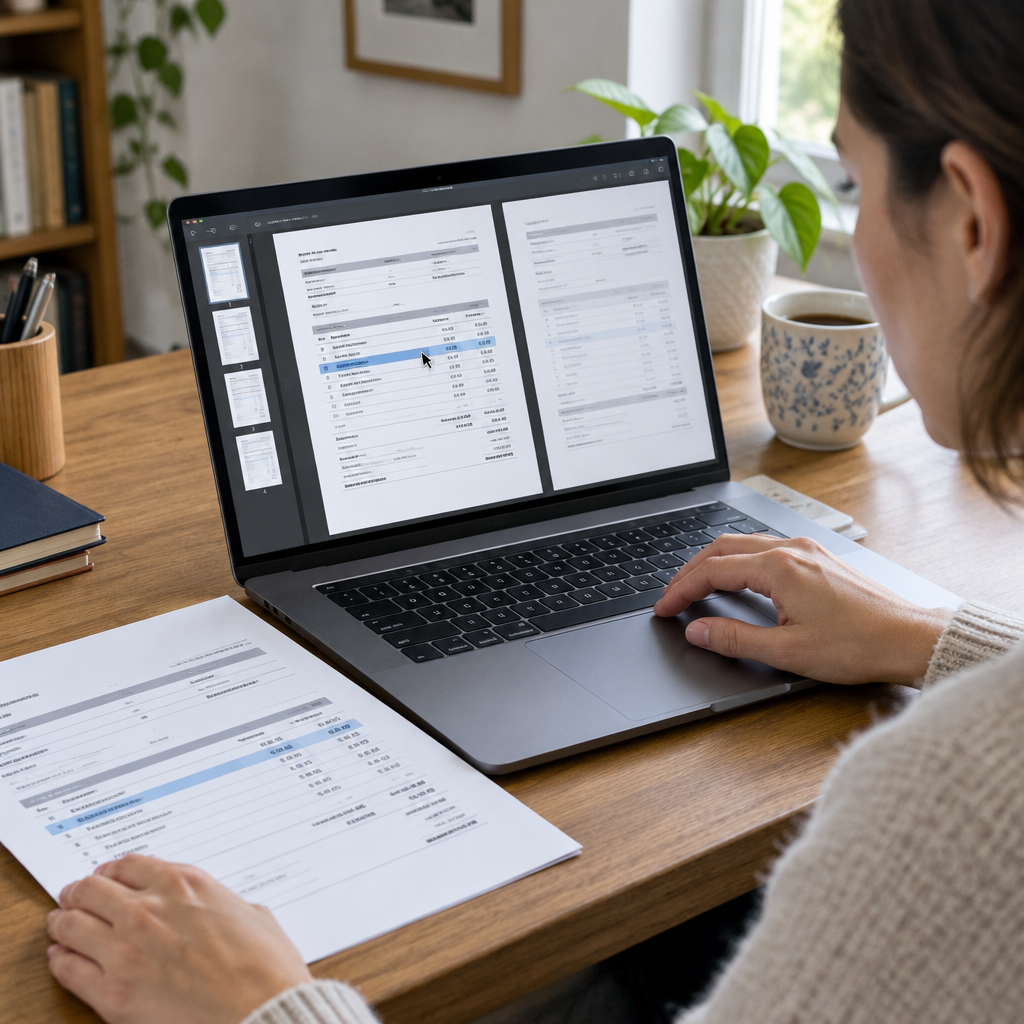
When a page is hard to read, improve the scan before rerunning OCR: straighten it, increase contrast carefully, remove shadows, and use a higher resolution if the source allows. Reprocessing a poor image does not guarantee a better result. If a number is critical and remains ambiguous, transcribe it manually and have a second person compare it with the source.
A simple pass-or-fix scorecard
Use this checklist for everyday client paperwork. “Pass” means the text layer is useful enough for the recipient’s purpose, not that every character is guaranteed correct.
| Check | Pass | Fix or escalate when… |
|---|---|---|
| Find text | Search locates words on multiple pages | Search misses clearly visible text |
| Copy and paste | Sentences and punctuation match the scan | Words are missing, duplicated or out of order |
| Names and numbers | Important values match the source image | Any amount, date or identifier is uncertain |
| Tables and columns | Labels remain paired with the correct values | Copied text interleaves columns or rows |
| Reading order | Read-aloud follows the page logically | It skips, repeats or jumps between regions |
For low-risk archives, a minor typo in a nonessential footer may be acceptable. For signed agreements, tax records, medical forms or payment instructions, do not guess. Correct the text layer if possible, or tell the recipient which section needs manual verification.
Choosing a PDF OCR workflow without overbuying
You do not need a paid subscription just to find out whether a scan is searchable. Built-in OCR in a desktop PDF application may be enough for occasional documents. A scanner’s companion app can be convenient for batches, while a dedicated OCR service may help with large volumes or language detection. Check the service’s privacy terms before uploading personal, financial or client documents.
| Workflow | Useful when | Check before relying on it |
|---|---|---|
| Built-in viewer or PDF editor | You process a few files and want a local workflow | OCR availability, language support and export behavior |
| Scanner software | You scan paper regularly and want OCR in the same step | Whether it creates searchable PDFs and preserves the image |
| Online OCR service | You need batch conversion or a one-off convenience | Upload retention, access controls and deletion policy |
| Manual transcription plus scan | A small amount of text is critical or OCR remains uncertain | Second-person review and keeping the original as evidence |
Test the workflow on a non-sensitive sample first. Compare the output, not just the product’s advertised accuracy. If your work involves frequent document handoffs, a consistent file naming and delivery routine can prevent confusion too; our client file naming system covers that side of the process.
Privacy and accessibility: two checks beyond accuracy
OCR can make information easier to search, which is useful and also increases exposure if the file contains private details. Before using an online conversion service, consider whether you are permitted to upload that document, who can access it, how long it is retained, and whether you can delete it. Follow the client’s agreement and your organization’s handling rules rather than assuming a free tool is appropriate.
Searchable text can improve access for people who use assistive technology, but OCR by itself does not make a PDF fully accessible. Logical reading order, document language, meaningful headings, form labels and image descriptions may still need work. A read-aloud test is a helpful warning check, not a formal accessibility audit.

A repeatable send-ready routine
Before sharing a scanned PDF, run the same small routine every time: keep the original, create the searchable copy, search two pages, copy one paragraph, verify the critical names and numbers, and check reading order on any multi-column page. Then confirm that the file is going to the right person and that the upload or sharing method is allowed for its contents.
This is a modest amount of checking, but it catches the failures that matter: a missing page, a wrong amount, a garbled date, or a document that looks fine but cannot be searched. Your PDF does not need to impress an OCR benchmark. It needs to be dependable for the person receiving it.
FAQ
Does OCR change the original PDF?
It depends on the tool. Many add a selectable text layer while preserving the scanned page image; others may rebuild or alter the file. Keep an untouched copy and compare the output before replacing the original.
How can I tell if a scanned PDF is searchable?
Open it in a PDF viewer, search for a word you can clearly see, then select and copy a sentence into plain text. Search working alone is not enough; verify the copied words against the page.
Is OCR accurate enough for invoices and contracts?
It is useful for finding and organizing text, but do not assume it is an authoritative transcription. Manually verify amounts, names, dates, signatures and any term with legal or financial consequences.
Can I use a free online OCR tool for client documents?
Only if the document’s sensitivity, your client agreement and the service’s privacy terms allow it. Check upload retention, access and deletion practices, or use an approved local tool.
Does searchable OCR make a PDF accessible?
It helps, but does not automatically provide correct reading order, headings, form labels or image descriptions. Test with read-aloud or a screen reader and address structural issues separately.
What should I do when OCR reads a key number incorrectly?
Compare it with the original image, improve the scan and rerun OCR if useful. If uncertainty remains, correct the text manually with a second-person check or clearly flag the value for verification.