
Digital Tools & Software
PDF Redaction Software: How to Verify Sensitive Text Is Really Gone
PDF Redaction Software: How to Verify Sensitive Text Is Really Gone

☰ Table of Contents
PDF redaction software can make a document look clean while leaving the original words recoverable underneath. That distinction matters when a freelancer shares an invoice, a small firm sends a contract, or a nonprofit publishes records: drawing a black rectangle over text is not the same as removing it. The reliable test is not how convincing the page looks. It is whether the sensitive content is absent from the saved file and its searchable, copyable, and embedded data.
This guide gives you a practical verification workflow, a comparison of common approaches, and a short checklist for choosing a PDF redaction tool. It is designed for ordinary business documents, not a substitute for legal or records-management advice on regulated disclosures.
Why “black bars” are not proof of PDF redaction
A visual cover-up can be a shape layered above text. Depending on the editor and how the file is exported, someone may be able to select the text beneath it, copy it, remove the shape, or inspect an earlier revision. A screenshot of a blacked-out page cannot tell you whether the original data remains in the PDF.
Proper redaction removes the selected content from the document, then saves a sanitized output. Some tools also offer a separate cleanup step for document metadata, attachments, hidden layers, comments, form values, and other information that should not travel with the file. Those are related but distinct jobs: redacting visible content does not automatically prove that every metadata field was scrubbed.
What secure PDF redaction software must actually do
When evaluating secure PDF redaction, check for a dedicated redaction function, a clear apply-and-save step, and an output you can reopen independently. Search the vendor’s documentation for what it removes and what cleanup remains your responsibility. “Hide,” “cover,” “whiteout,” and “draw shape” are not interchangeable with “redact.”
- Actual removal: the selected text and associated content are removed from the exported document, not merely covered on screen.
- Review before apply: you can mark areas, inspect every mark, and avoid accidentally removing neighboring text or an entire table column.
- Sanitized export: the app explains whether metadata, comments, attachments, hidden content, or prior revisions need a separate removal step.
- Local or cloud handling is explicit: know whether the file leaves your device, how long uploads are retained, and who can access them. Avoid uploading confidential files to an unfamiliar service just to test a feature.
- Reopenable output: you can save a new copy, close the editor, then inspect that saved file in a different viewer.
Do not infer a product’s security from a “secure” badge or a tool list alone. Test it using a document with invented sample data, and consult the tool’s current documentation for platform-specific behavior.
A five-minute verification workflow before sharing
Use a duplicate of the document and harmless sample text for the first test. A sensible PDF redaction workflow is short enough to repeat every time:
- Make a working copy. Preserve the original under appropriate access controls. Give the copy a clear filename so nobody mistakes it for the source.
- Mark each disclosure deliberately. Search for names, addresses, account numbers, signatures, and repeated occurrences. Inspect headers, footers, scanned pages, tables, and image-based text separately.
- Apply the redactions and sanitize. Use the application’s actual redaction action, then run its metadata or hidden-data cleanup if needed. Confirm any warning or confirmation dialog.
- Export to a new file and close the editor. Don’t rely on a live editing canvas. Reopen the exported file in another PDF viewer or a clean session.
- Try to recover the sample text. Search for it, select and copy around the marked area, paste into a plain-text editor, and inspect the relevant page at high zoom. For scanned pages, inspect the image closely as well.
- Check the surrounding document. Make sure the redaction did not reveal a neighboring line, leave a duplicate value elsewhere, or make the remaining page misleading.
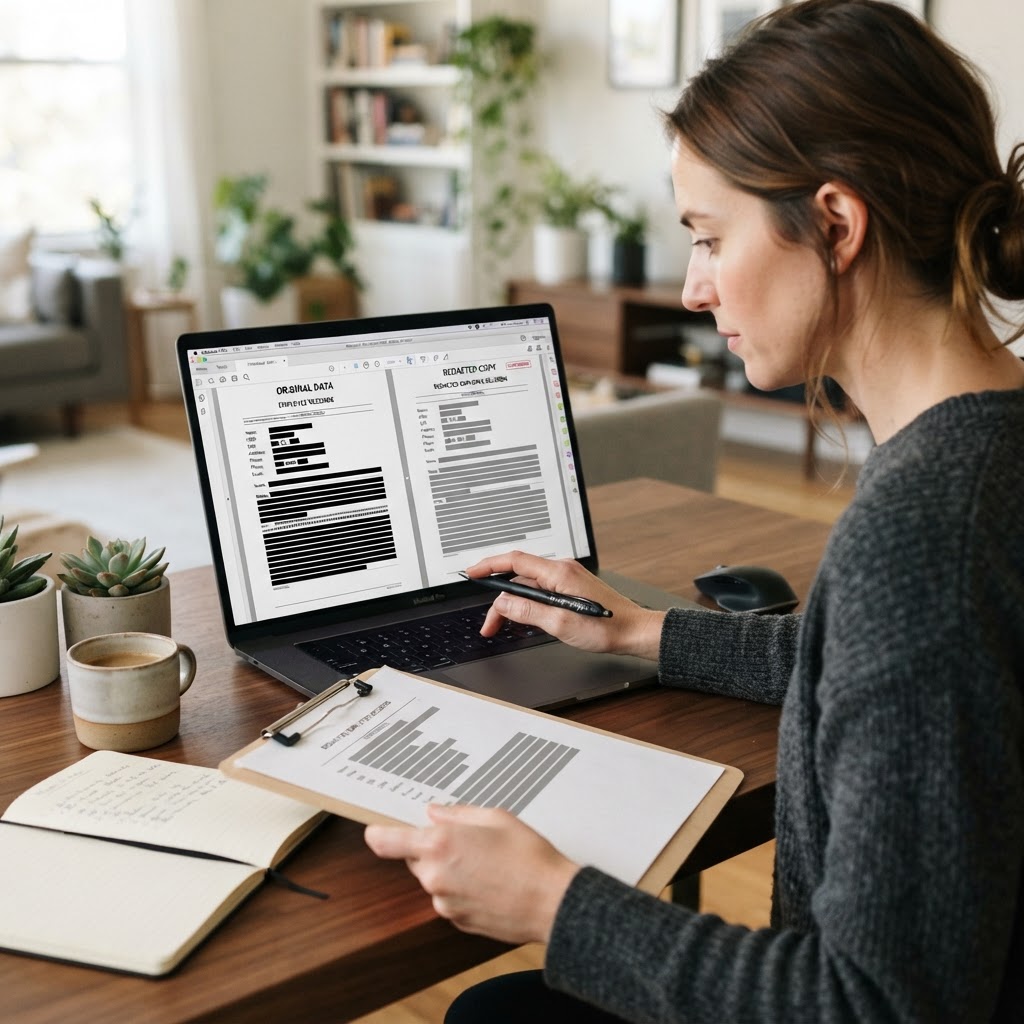
A failed check means stop and produce a new export; do not send the file and hope the recipient cannot uncover the text. A successful spot check is useful evidence, but it is not a forensic guarantee for every file format or threat model. If the disclosure has high legal, financial, medical, or safety consequences, use a qualified review process.
Compare common PDF redaction approaches
There is no single best PDF redaction tool for every document. The practical differences are whether the method removes content, how much verification it supports, and whether your files must stay local.
| Approach | Good fit | Main risk / check |
|---|---|---|
| Dedicated redaction feature in a desktop PDF editor | Recurring office or client-document work; often offers mark, apply and cleanup steps. | Confirm the output is actually sanitized; settings and cleanup steps vary by product and version. |
| Browser-based PDF service | Convenience for non-sensitive files when the provider and terms are acceptable. | The document may be uploaded. Check retention, access, deletion and data-location terms before use. |
| Rasterize pages, then rebuild a PDF | Occasional visual publication where preserving searchable text is not necessary. | Can reduce accessibility and quality; OCR or hidden layers may reintroduce text. Verify every page. |
| Draw a shape, highlight, or use “whiteout” | Annotating or visually masking a draft, not secure disclosure control. | Underlying content can remain. Do not treat as redaction without a separate validated removal step. |
For more general software selection, our Digital Tools & Software guides focus on workflow fit and practical checks. If you handle client documents routinely, see our related guide to invoice data extraction and human review; extracting fields and protecting source files are two sides of the same workflow.
The details teams overlook: metadata, copies and permissions
PDFs can contain more than what is visible on the page. Before sending, check document properties for author names or internal titles, inspect comments and form fields, and look for embedded files or attachments if the source workflow may include them. Some files also contain scanned images with text recognition layers, so visually obscured characters may remain searchable if the image and OCR layer were handled separately.
Keep the delivery copy distinct from the source and use a neutral filename. If the recipient only needs selected pages, consider whether sharing fewer pages is safer than redacting many fields. Send through an approved channel and limit access to the intended recipient; a perfectly redacted file can still be exposed by an overly public link.
Choose a tool by document risk, not feature count
Choose according to your actual volume and risk, not the longest feature list. A person redacting an occasional public-facing form may need a dependable desktop workflow and careful verification. A team processing contracts every week may need role-based access, repeatable procedures, auditability, and a clear retention policy. Neither scenario is solved by an app alone: people still have to identify the right content and inspect the output.
| Your situation | Prioritize | Before committing |
|---|---|---|
| Occasional, low-sensitivity file | A clear redaction tool and easy save/reopen workflow. | Test with invented content; verify text search and copy/paste on the exported file. |
| Regular client documents | Repeatable steps, offline option if needed, metadata cleanup, version clarity. | Review privacy terms and test a representative non-confidential sample. |
| Team or regulated records | Access controls, documented handling, retention and audit requirements. | Get security/legal approval; validate with a qualified reviewer for the applicable rules. |
Build a repeatable redaction checklist
Make verification part of the handoff, not a memory test. Record who prepared and checked the delivery copy, store it in the approved location, and avoid sending the editable working file by mistake.
- Original preserved securely; separate delivery copy created.
- All intended text, names, numbers, images and repeated occurrences reviewed.
- Redactions applied using a dedicated removal function, not a cover-up shape.
- Metadata and hidden content reviewed where relevant.
- Export reopened; text search and copy/paste checks completed on the saved output.
- Recipient, filename, sharing permissions and delivery channel checked.
For freelancers, this small final check is a professional service habit: it reduces avoidable exposure and gives clients a clear, repeatable process. It does not replace advice about whether a particular record may legally be withheld or disclosed.
FAQ
Can someone remove a black box from a PDF?
If it is only an annotation or shape layered above the original text, sometimes yes. A properly applied redaction should remove the selected content from the exported copy. Always test the saved file rather than assuming based on appearance.
How can I tell whether a PDF was truly redacted?
Reopen the exported copy, search for the sample or sensitive text, try selecting and copying around the area, and paste into plain text. Also inspect the visual page and relevant metadata. For high-risk disclosures, use a qualified verification process.
Does PDF redaction remove metadata too?
Not necessarily. Content redaction and metadata sanitization are often separate actions. Check the application’s documentation and inspect document properties, comments, attachments and hidden content when they matter.
Is an online PDF redaction tool safe for confidential files?
It depends on the provider’s security, retention, access and deletion practices, and your organization’s requirements. If you cannot establish that the service is approved for the data, do not upload confidential material to it.
Can I redact a scanned PDF?
Yes, but review the page image and any OCR text layer. A tool may alter the visible scan while leaving recognized text behind, or vice versa. Verify both visual appearance and searchable text after export.
Should I keep the original PDF?
Usually keep the original only if your retention and access rules permit it, and store it separately with restricted access. Share the verified redacted copy, not the source or an editable working version.