Digital Tools & Software
Conflicted Copy Files: How to Merge Two Versions Without Losing Work
☰ Table of Contents
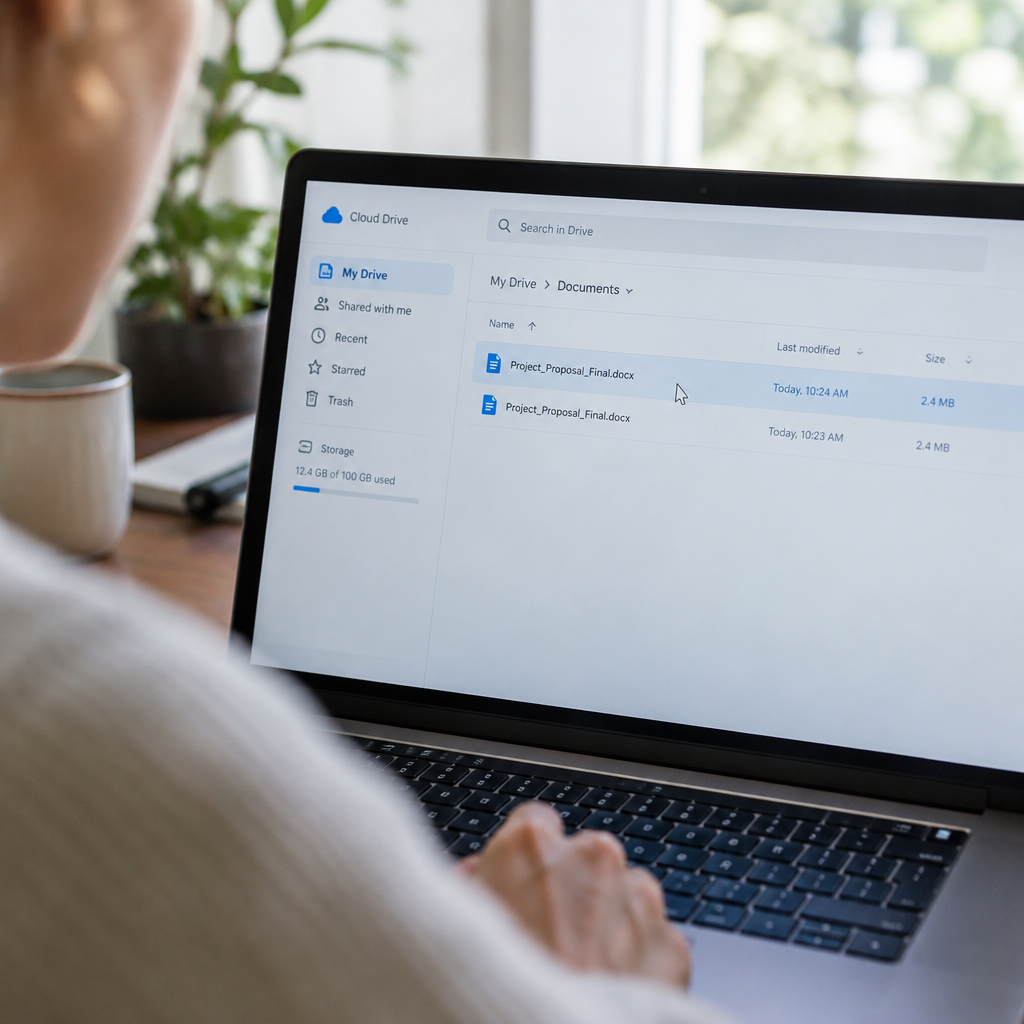
You open the shared project folder and the client file is there twice. One is called what you named it. The other has your name and a date jammed into the middle of it, or says conflicted copy, or has “copy of” bolted onto the front. Both open. Both look finished. Neither is the file you agreed to deliver.
This happens on ordinary days, in ordinary folders, to people who did nothing wrong. Someone edited on a train. Someone left the document open overnight with autosave on. Two versions of the same paragraph got written at the same time and the sync service had to pick one, so it kept both and handed you the sorting job.
What follows is the order we use before touching either file: how to read the duplicate name, which copy actually holds the work, how to rebuild a single clean document, and how to stop the collision repeating on the next client project. It applies to cloud sync conflicts in Dropbox, Google Drive, OneDrive and iCloud, because they all fail in the same three ways.
What the Odd Filename Is Telling You
The duplicate is not random. The service encodes who saved last and when, and that string is the most reliable evidence you have about what happened.
Dropbox is the most explicit. Its help documentation states that the editor’s username, the phrase “conflicted copy”, and the save date get added to the filename, and that the last version saved is the one that appears as the conflicted copy. So a file ending in (conflicted copy 2026-11-04) is the later write, not the stray. People routinely delete it because it looks like the intruder.
Google Drive is quieter. Desktop sync collisions usually surface as a second file whose name carries an account or computer reference, and the web app can also keep an older revision that never became a separate file at all. OneDrive appends the device name and a timestamp, which is useful, because it tells you which machine was responsible even when the same person owns both.
One detail worth internalising: the duplicate is almost never a full copy of the original with changes applied. It is a snapshot of the file as one device had it at the moment of the collision. Anything written on the other device after that snapshot exists only in the other file.
Why “Just Delete the Extra Copy” Loses Work
Every search result on this problem offers the same advice in slightly different words: compare the two versions and merge them manually, or delete the duplicate. The first half is correct. The second half is where freelancers lose half a day of editing.
Consider the ordinary sequence. You edit a proposal from 09:00 to 10:30 on a laptop. A colleague or client opens the same file at 09:40 on a desktop, fixes three paragraphs and saves at 11:00. The desktop save is later, so it becomes the conflicted copy under Dropbox’s rule. If you assume the clean filename is the good one and delete the duplicate, you keep your morning of expansion and lose their corrections, and nobody notices until the client reads the wrong version.
The reverse mistake is just as expensive. Keeping the duplicate and deleting the original throws away everything that was in the file before the collision, including sections neither person touched that morning but that the duplicate predates.
- Delete nothing on day one. Sync copies consume storage, not trust. Two days of caution costs nothing.
- Check the sync service’s version history before merging. Dropbox, Google Drive and OneDrive all keep prior revisions, usually for 30 days on paid plans and shorter on free ones. That history is a third source of truth when a merge goes wrong.
- Ask the other editor what they changed, in one sentence. People remember the two paragraphs they fixed far better than the timestamp.
Which Copy Holds the Real Edits
Timestamps alone lie. Autosave, clock drift between devices and the sync lag all shift the recorded times. Read the internal evidence instead, in this order.
| Evidence | What it proves | How to check |
|---|---|---|
| Word or Google Docs revision history | Exactly who typed what, minute by minute | File menu, Version history. Word in Microsoft 365 also keeps version history on OneDrive and SharePoint files. |
| Comments and tracked changes | Which copy received reviewer feedback | Open both, use Review, then Show Markup on all reviewers. |
| Last modified timestamp, in the app not the file list | Roughly when the file was last saved on that device | File, Properties, or the document’s statistics panel. File manager dates reflect sync, not editing. |
| Size difference beyond a few KB | One copy has genuinely more material | Properties on both. A large gap is a signal, not proof: images re-compress. |
| Embedded author name in the document properties | Which machine the copy came from | Properties, Details, Author and Last saved by. |
| Fields, cross references and formulas | Whether the technical work survived | In tables and spreadsheets, check that linked cells still resolve. Broken references cluster in the older copy. |
Nine times out of ten the two copies differ in a handful of paragraphs, not the whole document. That is good news: a targeted merge is faster and safer than rebuilding, and it keeps formatting that a rebuild would destroy.
Rebuilding One Document From Two Copies
Word has a purpose-built tool for this and most freelancers never open it. Under Review, Compare, Compare Documents, choose the older file as the original and the newer one as the revised. Word produces a third document with tracked changes and comments showing every difference. Accept what belongs, reject what does not, and save the result as a new file with a clear version name. The two source files stay untouched on disk.
Google Docs has no equivalent merge command worth relying on, so do it by hand in a copy of the newer file: open the older version beside it, and paste across only the paragraphs that exist in one and not the other. Keep the same heading styles or the table of contents and the PDF export will drift.
For plain text, Markdown, code and config files, use a diff. diff -u old.md new.md on any Linux or macOS machine, or a free visual diff tool, shows additions and deletions in colour. For spreadsheets, compare row counts and use a formula column that flags differences between the two sheets before you copy anything across.
Whatever tool you use, save the merged file under a new name and keep both sources until the client confirms receipt. A merged document that nobody can audit later is its own kind of risk when a client asks why a paragraph changed.
How Each Sync Service Behaves
The naming conventions differ, and so does the safety net. Ranges below describe the standard consumer and small business plans as of late 2026. Treat version retention as approximate and check your own plan before you rely on it.
| Service | What the duplicate looks like | Safety net you can use |
|---|---|---|
| Dropbox | Filename plus editor username, “conflicted copy” and the save date. Last saved version becomes the conflict file. | Version history and file recovery, longer on paid plans. Restoring a previous version is a few clicks in the web app. |
| Google Drive | A second file with an account or device reference in the name, or an older revision retained inside the same file. | Version history per file, and trash retention for deleted items. Google Docs keeps named versions if you create them. |
| OneDrive | Device name appended to the filename, sometimes with a timestamp. Office apps that cannot merge will keep both. | Version history on OneDrive and SharePoint, and the Office app’s own recovery pane for unsaved work. |
| iCloud Drive | Less consistent naming between apps. Apple’s own document apps usually merge silently instead of duplicating. | Limited per file history on some tiers. Rely on Time Machine or local backups, not on iCloud alone. |
| Nextcloud, Syncthing, self hosted | Configurable. Syncthing names conflict files with the device id and date by default. | Depends entirely on your sync setup. Confirm retention before it matters. |
A pattern shows up across all of them: real-time co-editing avoids the problem, sequential editing creates it. Two people in the same Word Online or Google Docs session see each other’s typing and the service reconciles continuously. Two people editing downloaded copies on separate machines cannot be reconciled, so the system protects both files and leaves the decision to a human.
The Fifteen-Minute Recovery Sequence
Run this in order the next time a duplicate appears. It takes about fifteen minutes for a normal document and it leaves a paper trail.
- Pause the sync. Quit or pause the desktop client so nothing is rewritten while you work. In Dropbox and OneDrive this is a menu item, and both resume cleanly.
- Copy both files out to a local folder outside the synced directory, for example
~/recovery/2026-11-04-proposal/. - Open both and record the differences in a scratch note: section headings, paragraph numbers, anything the other person added. Two minutes of notes saves twenty minutes of guessing.
- Merge with Word Compare, a diff, or a manual paste into a copy of the fuller file. Keep tracked changes on so the merge is visible.
- Save as a new version with an unambiguous name, and delete neither source yet.
- Confirm with the other editor using the note you made, not a vague “does this look right”. Send the list of what you kept from each side.
- Replace the shared file once, with sync running, then resume the other devices and let them settle for a minute before anyone edits again.
- Archive the two sources into a subfolder the client never sees, and remove them from the shared path.
Stopping the Next Collision on Client Work
Fixing one duplicate is a chore. Removing the conditions that create them is a habit, and it pays out on every project after this one.
- Name the working file with the owner and the version. A file called proposal-v3-jane.docx tells everyone who holds the pen. Our guide to a client deliverable file naming system that works covers the pattern in detail.
- Split drafting from review. The owner edits the working file. Reviewers comment and return notes, and the owner applies them. Two writers on one file is the collision source.
- Use a link, not an attachment, for anything live. One shared document with edit history beats three downloaded copies in three inboxes. The handoff workflow in freelancer file sharing for a safer client handoff is built around this.
- Turn off autosave on long offline sessions when you know you will be disconnected. Autosave on a laptop that reconnects mid-edit is the most common cause of a file being saved as a new edit after the other person finished.
- Close documents when you finish. A file left open overnight on a sleeping laptop wakes up and writes. That write is a new edit under Dropbox’s own description of the problem.
- Keep the client folder on one storage service. A folder synced by two clients at once will duplicate with no conflicted copy label at all, and that is harder to diagnose.
When the Client Caused It
Sometimes the duplicate appears because the client downloaded your file, edited it, and saved it back without telling you. The temptation is to send a polite but pointed message about process. Resist that on the first occurrence. Send the resolved file with one short line describing what you merged, and mention the working method once, in the same message, as a suggestion.
Something like: I have merged the edits into one file, kept your changes to sections 2 and 4, and my rewrite of the pricing table. To avoid two versions in future, I will keep the live file in the shared folder and flag when it is yours to edit. That is factual, it protects you, and it sets the rule without a lecture.
Keep the merged file and both sources until the invoice clears. If a later disagreement involves what was approved, the version trail is the only account of events that both sides will accept.
One last thing worth doing before you close the folder: write the collision down in a short project note with the date, the file, and what you merged. Two lines is enough. When the same client causes it again in three months, the pattern is on record and the conversation is much shorter.
Frequently asked questions
Is the conflicted copy the newer or the older version?
In Dropbox, the last version saved appears as the conflicted copy, so the duplicate is usually the newer write. Do not generalise that to every service. Confirm with revision history or the document properties before you delete anything.
Can I merge two Word documents automatically?
Word Compare produces a third document with tracked differences, which you then accept or reject. That is a merge in practice. Nothing merges paragraphs that both people rewrote in different ways, so a short manual pass is still normal.
Does deleting a conflicted copy delete the file for everyone?
Yes, if you delete it from the shared folder. It moves to the service’s trash or deleted items for the retention period, and it disappears from every collaborator’s view. That is exactly why the first step is to copy both files out of the synced folder.
Why does this keep happening on one particular file?
A file that duplicates repeatedly is usually open on a device that keeps waking and saving, or it sits in a folder synced by two services, or it is a large file the connection cannot finish uploading. Close it everywhere, let one device upload completely, then reopen on the others one at a time.
Is a conflicted copy a sign something is broken?
No. It is the service protecting both versions instead of guessing. The failure is organisational, two edits at once, not technical. Fix the working habit and the duplicates stop.
What if the client already received the wrong version?
Send the merged file with a one line correction naming what changed, and attach the version history note if you have it. Correcting early costs one message. Correcting after a decision was made from the wrong draft costs the relationship.