
How-To & Tutorials
2FA Recovery Codes: The 20-Minute Test That Finds Your Lockout First

☰ Table of Contents
Almost everyone who works online has two-factor authentication switched on somewhere. Far fewer have ever opened the screen that holds their 2FA recovery codes, and fewer still have tried using one. That gap is the whole problem: a second factor you cannot recover from is not security, it is a scheduled outage with your name on it.
This is a hands-on drill, not a lecture about strong passwords. In about twenty minutes you can find out which of your accounts would lock you out tomorrow if your phone disappeared today — and fix the ones that would — while nothing is actually on fire.
Why recovery is the part nobody tests
Setup screens optimise for the happy path. You scan a code, you type six digits, the app says “two-factor authentication enabled”, and you feel safer. Nobody walks you back to the recovery screen, and the recovery screen is where every real incident is decided.
There is a practical reason this matters more for people who work for themselves. When an employee loses a phone, IT resets the factor and the work continues. When a solo consultant loses a phone, the same event can shut down client email, the billing portal, the domain registrar and the design tool at once — on a Tuesday, with three deadlines in flight. The recovery path is the business continuity plan.
Three things tend to be true at the same time, and all three are quiet failures:
- The codes were downloaded once and are sitting in a Downloads folder that was cleared when the laptop was wiped.
- The codes are stored inside the same password manager that the second factor protects — so a lockout blocks access to the remedy.
- The backup phone number is a number you no longer control, usually an old mobile plan or a landline from two addresses ago.
None of these announce themselves. You find out at the worst possible moment, which is the definition of a problem worth scheduling.
Start with the accounts that would stop you, not with all of them
Auditing every login you own is a project you will abandon by Thursday. Audit the ones that would end the week instead. Rank your accounts by what happens in the first 24 hours without access.
| Tier | What belongs here | What a lockout costs |
|---|---|---|
| 1 — Business stops | Primary email, domain registrar, hosting, payment processor | No client contact, no invoices, no site. Recovery measured in days, sometimes weeks |
| 2 — Week gets ugly | Bank and card accounts, cloud storage, password manager, tax portal | Delayed payments, frozen files, identity checks that need documents you cannot reach |
| 3 — Annoying | Social profiles, marketplaces, subscriptions, forums | Time and reputation, rarely revenue |
Tiers 1 and 2 are where the drill belongs. If a Tier 3 account is still on SMS and you have not touched it in a year, leave it alone. Effort spent there is effort not spent on the registrar that holds your domain.
Where recovery codes go wrong

Storage is not a detail. The code has to be reachable in a situation where your normal tools are exactly what you have lost. That rules out the two most popular options.
| Where the codes live | Works when phone is lost | Works when laptop is lost | Catch |
|---|---|---|---|
| Same password manager as the login | No if the manager itself needs 2FA | No | Single point of failure. The remedy sits behind the lock |
| Email draft to yourself | Usually yes | Usually yes | Compromised email account now leaks the second factor too |
| Printed sheet in a locked drawer or safe | Yes | Yes | Needs physical access; useless if you travel for months |
| Encrypted file on offline external drive | Yes | Yes | Requires the drive to be with you, not in another city |
| Second password manager, separate master password | Yes | Yes | You must actually remember that second master password |
| Hardware security key registered as a second factor | Yes | Yes | Key must live separately from the laptop, or one theft takes both |
The pattern that survives real incidents is boring: two copies, two places, neither of them dependent on the account being recovered. A printed sheet at home plus an encrypted file in a cloud drive that is not protected by the account you are trying to open covers the realistic cases. So does a second password manager whose master password lives only in your head.
One more rule worth adopting: the recovery sheet must not be a full inventory of your logins. A single printed page titled “everything, all passwords” is a burglary away from being a catastrophe. Label codes by account and keep the passwords separate.
What each second factor gives back when the phone is gone
Not every factor recovers equally. Knowing which method you chose on each Tier 1 account tells you how bad a lost-device day would be.
- SMS or voice codes. The weakest factor, and also the easiest to recover — which is why carriers get targeted with SIM swaps. Recovery depends entirely on a phone number you still control and a carrier that will talk to you.
- Authenticator app (TOTP). Strong and cheap. Recovery is the app’s own export or backup feature plus your saved recovery codes. Lose both and the provider’s support queue decides your week.
- Push approval in an app. Convenient, and the most dependent on the old device being signed in. Some providers let you approve from a new device after an email or SMS check; others make you wait out a cooling-off period.
- Hardware key. The most resistant and the most recoverable, because the key is a separate object. Register two, keep one somewhere else, and the lost-phone scenario stops mattering for that account.
- Passkeys. Excellent day to day, awkward if every passkey lives on the device you dropped. Cloud-synced passkey stores and one hardware key as a fallback change that.
Passkeys are the future of sign-in, but they shift the recovery question rather than removing it. Replacing a password with a stored credential moves the backup problem to whichever keychain syncs it, so that cloud account inherits production-critical importance. That is also why account-level permissions deserve the same scrutiny: our checklist for reviewing what a tool is allowed to access uses the same tier-first logic.
The twenty-minute drill
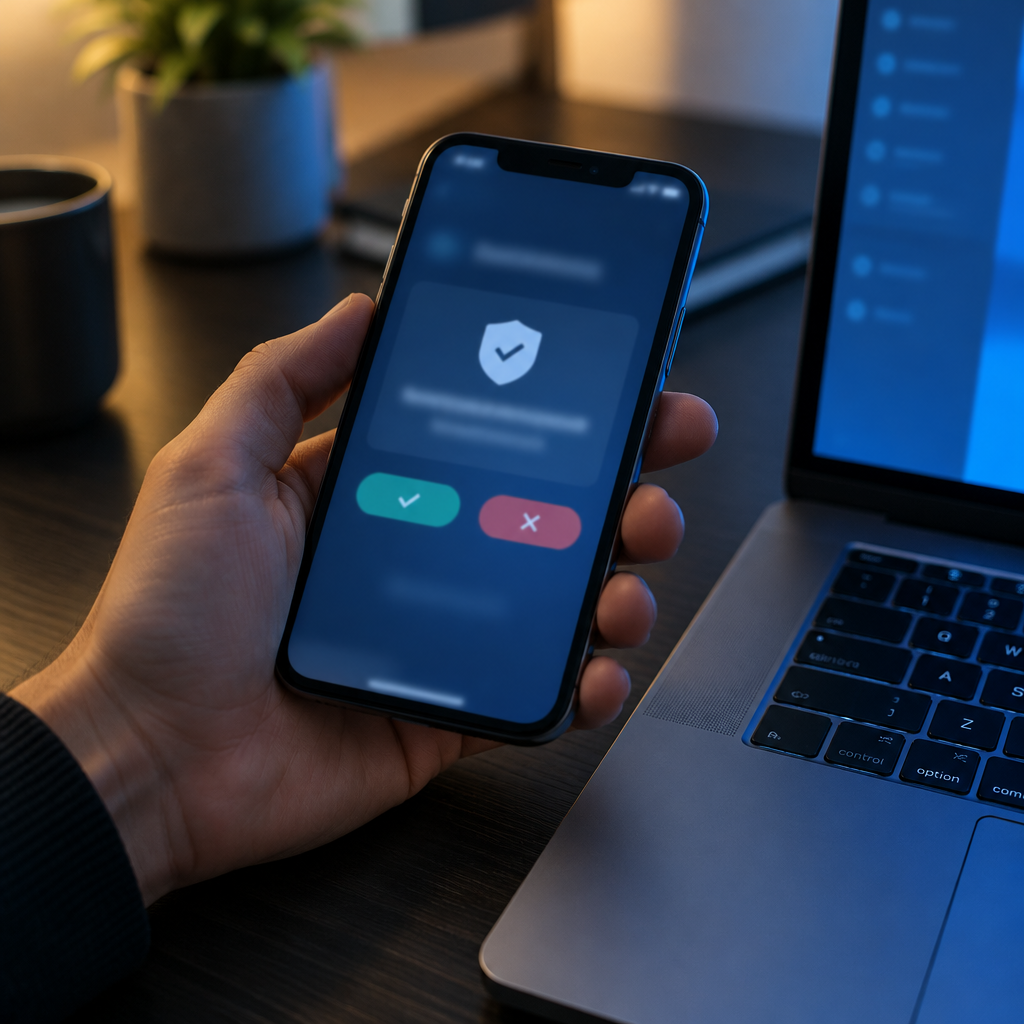
Block twenty minutes, ideally not on a deadline day. Work top to bottom.
- Write down your Tier 1 and Tier 2 accounts. Pen and paper. Five to nine names is normal; if you have thirty, your tiers are wrong.
- For each one, note the current second factor using the list above. This alone often reveals that the most important account has the weakest factor.
- Open the recovery screen and download or regenerate codes. Regenerating invalidates the old set, which is a feature: it also kills any copy floating in an old download folder.
- Test one code on the least critical Tier 2 account. Use it deliberately, confirm it is accepted, then regenerate the set. This is the step everyone skips, and 2FA recovery codes that were never tested are guesses.
- Move the fresh codes into your two storage locations. Print, seal, and place. Save the encrypted file. Delete the Downloads copy.
- Check the backup phone numbers on each account. If a number belongs to an old plan, replace it or remove it — an untested number is worse than none because it makes you feel covered.
- Register a second factor where only one exists. A spare hardware key on the two most critical accounts is the single highest-value change most freelancers can make in an afternoon.
The testing step matters more than the archiving. A code that was never used in a calm moment is a rumour. Once you have watched one work, you know the mechanism, the format and where it appears in the flow — all of which you will need under pressure.
Changing phones without losing the authenticator
This is a scheduled version of the same emergency, and it is where well-prepared people still get caught. Most authenticator apps either back up to a cloud account or support a manual export of all accounts as a QR code. Know which one you have before you trade in the phone.
- Check the app’s backup setting now, not on the day you buy a new handset. A backup that was never enabled does not exist, and some apps keep it off by default.
- Do the migration at a desk, with the old phone still working. Move one account, sign in on the new device to prove it, then move the rest.
- Keep the old device wiped but signed in until the last account is confirmed. Wiping early is the most common way people turn a routine upgrade into four support tickets.
- Never store the authenticator’s export QR code in a photo library. It is a universal key to every account inside it. If you export, store the image the way you store recovery codes.
When support is the only door left
At some point recovery means talking to a company. What happens then is more predictable than it feels, and knowing the shape of it reduces the panic.
Expect identity verification that is harder than the signup: a government ID, a selfie, sometimes a matching card statement or a domain WHOIS email. Expect a wait, often between one and several business days, and expect the process to assume you can still receive mail at an address on file. If your business address changed and was never updated, that assumption breaks.
Two details decide how smoothly that goes. First, whether the account has a verified backup contact that still works — add one deliberately. Second, whether the account is on a business plan with named admins, because a second admin is a recovery route that costs nothing and works instantly.
This is the same principle behind a clean offboarding: access that nobody remembers granting is access nobody can revoke. Our offboarding checklist for revoking client access exists because accounts drift, and recovery suffers from the same drift in reverse.
Keep it current with a quarterly recheck

Recovery plans rot. Phone numbers change, providers discontinue app support, a printed sheet goes into a box that moves house twice. Fifteen minutes once a quarter keeps the plan honest.
- Confirm the printed sheet still exists and is where you think it is. This sounds trivial until it is not.
- Check that the backup numbers still ring you. Two calls.
- Look for new Tier 1 accounts. A new payment processor or domain added since last quarter needs its own recovery route.
- Re-read the provider’s recovery policy for the two most critical logins. Policies change quietly, usually toward stricter verification.
Put it in the calendar next to the software subscription audit. Twenty minutes now, versus a week of support tickets and lost client trust later, is not a difficult trade.
FAQ
Where should I keep 2FA recovery codes?
Two places, neither dependent on the account being recovered: a printed sheet in a locked drawer or safe, plus an encrypted file in a cloud drive protected by a different account. Keeping codes only inside the same password manager as the login defeats the purpose, because a lockout blocks both.
How many recovery codes do I need to save?
Save the full set the provider issues, usually eight to ten single-use codes. Each works once, so a partial set runs out faster than expected during a real recovery, when you may need to sign in on several devices before you can regenerate.
Can I use a recovery code if I still have my phone?
Yes, and you should. Using one deliberately on a low-risk account, then regenerating the set, proves the codes work while nothing is at stake. Untested codes are the most common reason recovery fails.
Are SMS codes still acceptable for business accounts?
As a fallback, yes; as your only factor on a Tier 1 account, no. SMS depends on a phone number you control and a carrier that will believe you, and number recycling and SIM swap fraud both target exactly that link.
What happens if I lose both my phone and my recovery codes?
You go through the provider’s identity verification: ID upload, sometimes a selfie and a payment record, usually one to several business days. A second admin on a business plan, or a hardware key stored elsewhere, avoids that queue entirely.
Do passkeys remove the need for recovery codes?
No. Passkeys replace the password, not the backup. If all your passkeys live in one device or one cloud keychain, that store becomes your single point of failure and needs its own recovery route.