
How-To & Tutorials
How to Move Passkeys to a New Phone Without Getting Locked Out
How to Move Passkeys to a New Phone Without Getting Locked Out
☰ Table of Contents
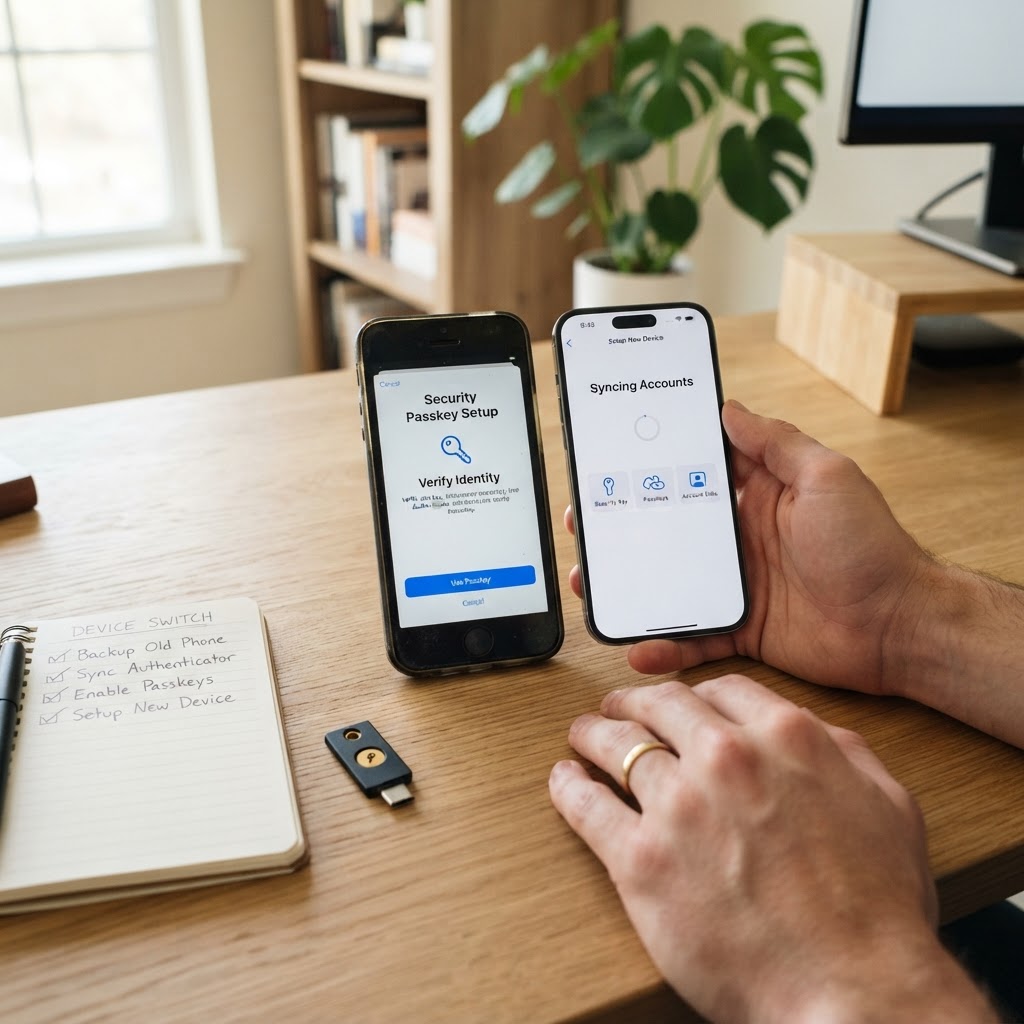
Moving passkeys to a new phone is usually straightforward when the passkey lives in a password manager or cloud account that syncs. The risky part is assuming every passkey follows the same route. Some are synced through Apple, Google, or another credential provider; some are tied to one device or security key. If you wipe the old phone before checking, you can discover the difference at the worst possible moment: a login prompt on a service you urgently need.
This guide gives you a safe migration sequence for iPhone, Android, and mixed-device households. The short version: keep the old phone available, confirm your recovery paths, add and test the new device on important accounts, and only then erase or trade in the old one. Passkeys are designed to resist phishing, but they do not remove the need to plan for account recovery.
Before you erase or trade in the old phone
Do not start with a factory reset. First make a short inventory of the accounts that would cause real trouble if unavailable: your primary email, Apple or Google account, password manager, banking, mobile carrier, work identity, and any account used to recover others. A passkey on a new phone may be enough for one site but not for your cloud account that restores the passkey provider itself.
Check the old phone’s operating-system account and the credential provider selected for autofill or passwords. Keep both the device and its screen lock working while you migrate. If you are mailing the phone for a trade-in, plan for a few days when you can still retrieve it, or make sure your new phone and recovery methods are confirmed first.
Find where each passkey is actually stored
A passkey is a credential, not a photo or file that you copy from one phone to another. When it is a synced passkey, its credential provider securely makes it available on other devices within that provider’s ecosystem. Apple says iCloud Keychain can make passwords and passkeys available across devices; Google Password Manager similarly supports passkeys across supported devices. A device-bound passkey stays with its authenticator, such as a particular phone or hardware security key, and must be replaced or supplemented by registering another passkey with the service.
For each important account, ask two separate questions: which provider saved the passkey, and can I sign into that provider from the new phone? Do not infer the answer from the phone brand alone. Chrome, a third-party password manager, and the built-in system provider may all be present on one device.
| What you see | Likely storage path | What to verify before moving |
|---|---|---|
| Passkey appears in Apple Passwords / iCloud Keychain | Apple Account and iCloud Keychain sync | New iPhone is signed into the same Apple Account, iCloud Keychain is enabled, and you can unlock the account |
| Passkey appears in Google Password Manager | Google Account sync on supported Android/Chrome devices | New device can access the same Google Account and Password Manager; complete any required screen-lock setup |
| Passkey is in a password manager app | That provider’s vault and sync settings | Vault access, recovery method, and passkey support on the target phone are all confirmed |
| Passkey is on a USB/NFC security key or one device only | Device-bound authenticator | Keep the key/old device and add a second passkey or another recovery method at the website |
The table is a starting point, not a guarantee: providers change features and a particular website may impose its own rules. When uncertain, check the provider’s current help page and the account’s security settings before you disconnect anything.
The safe phone-to-phone migration order
Use this order rather than trying to move every credential in one sitting. It separates the step that restores your credential provider from the steps that verify individual websites.
| Step | Do this | Why it matters |
|---|---|---|
| 1. Protect the cloud account | Confirm its password or passkey, recovery email/phone, and any recovery codes; keep an existing signed-in device | The provider account may be the bridge that syncs other passkeys |
| 2. Set up the new phone | Update its OS, sign in to the same Apple/Google/password-manager account, and enable the intended credential provider | Passkeys can only show up after the provider is available and unlocked |
| 3. Test a low-risk account | Open a website where you already know another recovery method, then sign in using the new phone’s passkey | Confirms sync and prompts are working before high-stakes logins |
| 4. Test critical accounts | Sign in to email, password manager, carrier, banking, and work accounts on the new phone | Finds exceptions while the old phone can still help |
| 5. Add a backup route | Where offered, register a second passkey on another device/security key or save recovery codes safely | One lost phone should not become the only way into an account |
| 6. Retire the old phone | Only after successful tests, remove its passkeys if needed, sign out, and factory-reset it using the maker’s trade-in guidance | A clean retirement avoids both lockout and leaving personal data behind |
Do not test by deleting the old passkey first. Some services let you register multiple passkeys; others handle them differently. Add and verify the new route before removing an old one. If a site has a device list, label entries clearly so you can tell the new phone apart from the old one later.
Crossing between Apple, Android, and Windows
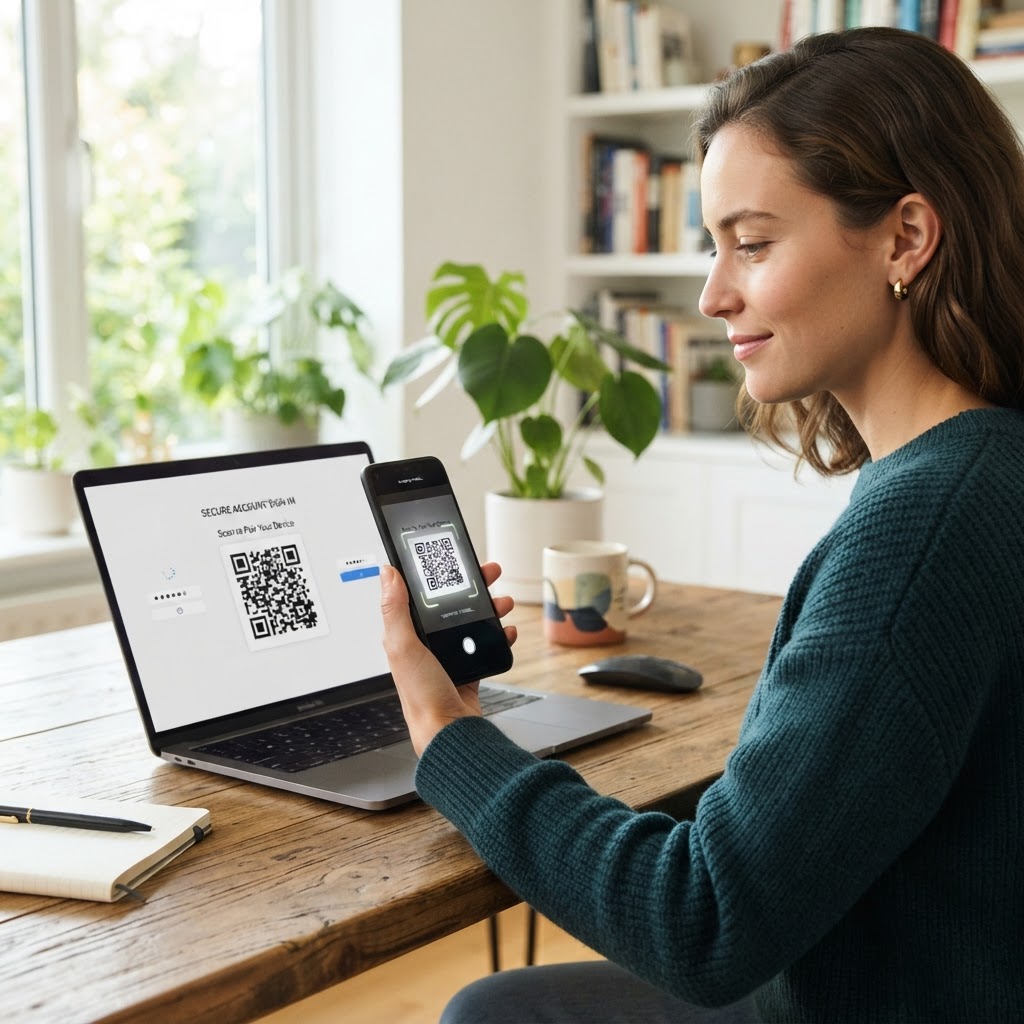
Same-ecosystem upgrades are usually the least surprising: an iPhone-to-iPhone move with iCloud Keychain, or Android-to-Android with the same Google account and credential provider. Cross-platform use can work too, but the handoff may rely on a QR-code-assisted sign-in or a supported password manager rather than copying the passkey into the other platform’s native store. That is why a borrowed laptop or a browser prompt is a useful test before travel or trade-in day.
For a mixed setup, choose one primary password/passkey manager you can use on every device you actually own, then confirm that the specific service’s passkeys are stored there. A phone’s built-in prompt can offer a different provider than the one you intended. Read the provider name in the save or sign-in prompt instead of tapping through reflexively.
- iPhone to iPhone: sign in to the same Apple Account and verify Passwords/iCloud Keychain is available on the new phone.
- Android to Android: sign in to the same Google Account, confirm Google Password Manager is the selected provider, and use the device’s current unlock method.
- iPhone to Android or the reverse: do not assume native passkeys will migrate across ecosystems. Use a supported cross-platform provider or the website’s add-another-passkey flow while the old phone is still available.
- Phone to Windows or Mac: follow the site’s QR/device sign-in prompt or the credential manager’s official desktop support steps; test it on a low-risk account first.
What to do when a passkey does not appear
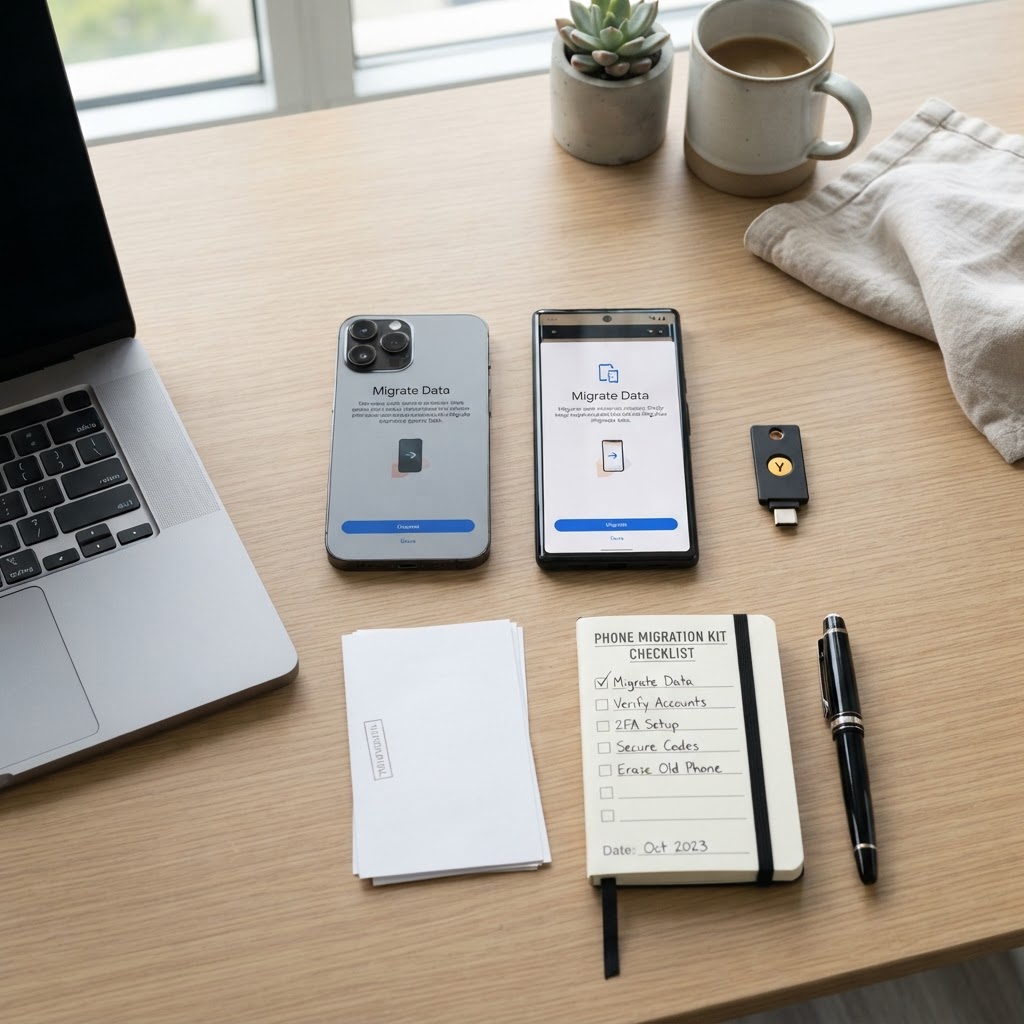
Pause before removing accounts or resetting the old phone. Check that the new device is signed into the correct cloud account, the intended password manager is enabled, and the screen lock meets the provider’s requirements. Then open the manager directly and search for the website rather than relying only on the browser’s first prompt.
If the credential is device-bound or absent from the new provider, return to the website’s security settings on a device where you are still signed in. Add a fresh passkey for the new phone. If the old device is unavailable, use the site’s official recovery process; never accept help from an unsolicited caller or share a recovery code with anyone. You can also read our account-access handoff checklist for a parallel lesson: transfer control only after the destination access has been tested.
For a work or client account, involve the organization’s administrator rather than trying to bypass its policy. Managed accounts may require an approved authenticator, security key, or admin-assisted reset. Keep a record of which route worked, but never put the private passkey material or recovery codes in a shared document.
A 10-minute lockout-prevention check
Before the old phone leaves your hands, do this final pass. Open a private/incognito window on another device if practical, but do not sign out of your only working session until you know you can get back in.
- New phone unlocks with its normal screen lock and is signed into the correct platform account.
- Your primary email and password manager both open on the new phone.
- At least one important website accepts its passkey from the new phone.
- Accounts that require another authenticator have a working, independent option.
- Recovery email and phone numbers are current; recovery codes are stored offline or in a secure vault.
- You know which passkeys are device-bound and have added replacements where needed.
For account security generally, passkeys are phishing-resistant because a credential is tied to the legitimate website or app. They are a meaningful improvement over passwords alone, but recovery still depends on your provider account, device access, and each service’s own recovery process. For another practical security workflow, see our guide to safer client file sharing.

FAQ
Do passkeys automatically transfer when I get a new phone?
They may appear automatically when they are synced by the same credential provider and you sign into that provider on the new phone. Device-bound passkeys do not automatically move; register a new one with the website while you still have access.
Should I erase my old phone before setting up the new one?
No. Keep the old phone signed in and usable until you have tested important accounts on the new phone and confirmed your recovery routes. Then remove personal data using the manufacturer’s reset steps.
Can I move an iCloud passkey directly to Android?
Do not assume you can copy it directly into Android’s native store. Use the supported cross-device sign-in flow or add a new passkey from the service on Android, while the Apple device remains available.
What if my old phone is already lost or broken?
Try signing into the passkey provider on a trusted replacement device, then follow the service’s official account recovery steps for credentials that do not sync. A backup security key, recovery code, or verified recovery contact may help if you set it up beforehand.
Are passkeys safer than passwords?
They are designed to resist phishing and credential replay because the site-specific credential is not typed into a fake website. Account recovery and device security still matter, so keep your phone updated and maintain more than one legitimate recovery route.
Can I store the same passkey in two password managers?
That depends on the provider and website; do not assume credentials can be exported or duplicated. The safer approach is to add a second passkey through the website’s security settings and verify it before removing the first.