
AI Tools
AI Agent Permissions: A Freelancer’s Practical Safety Checklist
AI Agent Permissions: A Freelancer’s Practical Safety Checklist

☰ Table of Contents
An AI agent can save a freelancer an hour and still create a mess in seconds if it has more access than the job needs. This practical AI agent permissions checklist helps you decide what an agent may read, prepare, and actually do, before you connect it to client files, email, calendars, or payments.
The safest starting point is not “trust the model” or “never use agents.” It is to scope the task, limit the tools, and keep a person at the point where an action becomes hard to undo. That approach works whether you use an AI assistant built into a productivity app or a browser agent that clicks through websites.
The Quiet Risk Is the Permission, Not the Model
An AI agent that can read a calendar is different from one that can send an email, edit a client file, or spend money. That sounds obvious, but product demos often blur the line: one click grants a broad connection, then the agent appears to “just help.” For a freelancer or small team, the meaningful question is not whether an agent is clever. It is what it can do when it misunderstands a name, a deadline, or a sentence in a document.
A useful AI agent permission checklist starts with the consequence of each action. Reading a draft is low impact. Sending it to a client is not. Searching a folder is reversible; deleting or sharing its contents may not be. Set permissions around that difference, not around a vendor’s list of features.
Map the Work Before Connecting Accounts
Write down the narrow task in plain language: “prepare a reply draft from these three approved files,” not “manage my inbox.” Then list the exact information the agent needs, the actions it may take, and what must remain human-approved. This small exercise catches overbroad access before OAuth screens and integrations make it feel routine.
For example, an agent summarizing incoming project requests may need read-only access to one label, but not the ability to send messages, alter filters, or access personal mail. A research agent might need a specific browser profile, not access to every logged-in account. If the task cannot be explained narrowly, it is not ready for unattended automation.
Use a Permission Ladder, Not an All-or-Nothing Switch
Start at the lowest level that can prove value, and expand only after reviewing real runs. A staged rollout makes the agent useful without giving it a blank cheque.
| Level | Agent may | Human checkpoint | Good first use |
|---|---|---|---|
| 1 · Observe | Read a specified source and summarize | Review the summary | Meeting notes, approved folder search |
| 2 · Prepare | Create a draft or proposed change | Approve before saving or sending | Email drafts, task suggestions |
| 3 · Act narrowly | Perform a bounded, reversible action | Review log and exceptions | Label a message, create a calendar hold |
| 4 · Act externally | Send, publish, delete, pay, or change access | Explicit approval for each action | Rarely suitable for unattended work |
Put Human Approval at the Irreversible Step
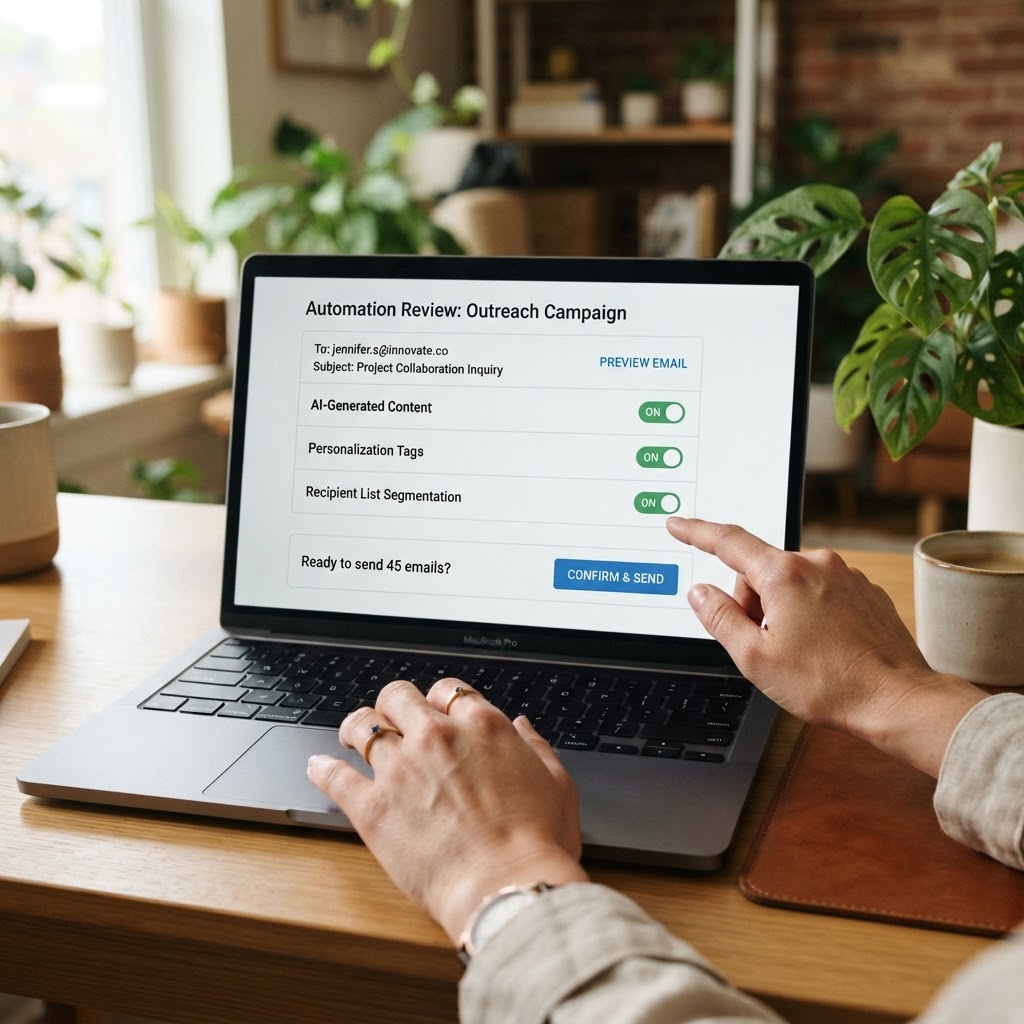
Human review should sit immediately before the consequential action, not vaguely “somewhere in the workflow.” Let an agent draft, sort, or prepare a change, then pause before it sends, publishes, pays, deletes, or changes access. The reviewer needs to see the proposed action and the source material that supports it.
Avoid approval buttons that merely say “Continue.” A good review screen answers: which recipient, which content, which file or amount, and what will happen next? For high-impact actions, use a second confirmation or keep the action entirely manual.
Set Limits, Logs, and a Kill Switch
A permission checklist is incomplete without operating limits. Put boundaries around volume, destinations, and time: maximum messages per run, approved recipient domains, spending caps, allowed folders, and a daily stop time. Where the platform supports it, make the agent stop when a tool errors or returns unexpected data instead of improvising a workaround.
Keep an activity log that records the request, sources consulted, proposed action, approval, and result. Logs are not just for catching mistakes after the fact; they help you learn whether the automation is dependable enough to expand. Make sure a human can revoke access quickly, and test that revocation before relying on the agent.
A 15-Minute Preflight for a New Agent
Before the first live run, test with a harmless sample account or a copied file. Include a normal request, an ambiguous request, and an instruction hidden in the input data that asks the agent to do something outside its job. The correct result for the last two may be to stop and ask, not to guess.
Then review the permission screen and remove anything the task does not require. Run in draft or preview mode first. Check the log and confirm that the agent did not reach unrelated files or accounts. Only then allow a tightly bounded live action, and keep the first few runs under direct supervision.
A Practical Permission Matrix
Use this as a starting point, not a universal security policy. The exact controls depend on the agent and connected services; if a provider cannot separate read from write access, treat that as a reason to keep the workflow supervised.
| Area | Safer default | Expand only when |
|---|---|---|
| Read selected label; draft only | Recipient and content can be checked before sending | |
| Files | One project folder; read-only | Write access is required and version history exists |
| Calendar | View availability; propose holds | Invitees and time zone are verified |
| Payments | No payment authority | Never without a separate human approval and spending limit |
| Browser | Dedicated profile with no unrelated logins | Sites and actions are explicitly allowlisted |
| Client data | Use only approved sources; minimize retention | Client terms and provider settings have been reviewed |

When to Keep the Agent in Draft Mode
Keep approval mandatory for unfamiliar recipients, financial changes, contracts, employment decisions, public publishing, account recovery, and anything involving sensitive client or personal data. A reliable agent can still be wrong in ways that are expensive to reverse. The goal is not to remove people from every step. It is to spend human attention where it matters most.
For a related data-handling baseline, see our AI client-data privacy checklist. If you are evaluating a browser-based agent or extension, our 10-minute AI browser extension audit covers the access questions to ask before sharing work files.
Frequently Asked Questions
Should an AI agent have access to my full inbox?
Usually not for a narrow workflow. Start with a dedicated label, folder, or test mailbox and read-only access. Broaden only if the task genuinely requires it.
Can I let an AI agent send client emails automatically?
Begin with drafts and require review. If you later automate a repetitive low-risk message, restrict recipients and volume, log every send, and provide a clear stop mechanism.
What permissions should I grant an AI browser agent?
Use a separate browser profile, sign in only to the services needed, and avoid giving it access to personal accounts, payment methods, or unrelated client work.
How do I know whether a permission is too broad?
Compare it with the written task. If the agent can edit, share, or delete data when it only needs to summarize, the access is broader than necessary.
What should an agent activity log include?
At minimum: the task, sources accessed, proposed or completed action, approval status, timestamp, and any errors. Avoid logs that expose more sensitive data than the workflow itself.
Is a human approval step enough to make an agent safe?
No. Approval helps, but it should sit alongside limited access, action limits, tested failure behavior, and the ability to revoke access quickly.